ShipDriver
1. What and Why

ShipDriver is intended as a very basic ship simulator. It allows a simulated vessel to be driven across the chart and mimics the appearance of the OpenCPN screen when in actual use. AIS can be recorded and played back with the VDR plugin, allowing the display of collision avoidance situations. This could be useful for training purposes.The simulation can extend to multiplayer scenarios where AIS data from one simulator is sent across a network to another user.
2. Install
Select Options→Plugins. Update the master catalog and install the plugin, which is listed as 'ShipDriver'. The plugin is available for Windows, Linux and MacOS.
3. Standard actions
Make sure the plugin is enabled.

The AIS Preferences are used later They can be left unchecked.
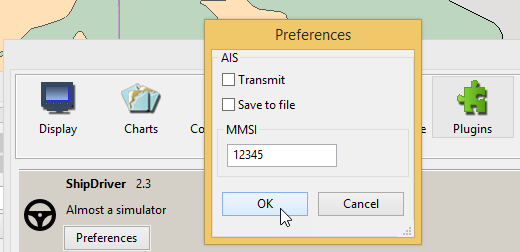
After 'Apply'/'Ok' the ShipDriver icon will appear in the toolbar of the main screen.

Press the icon to display the simulator control.
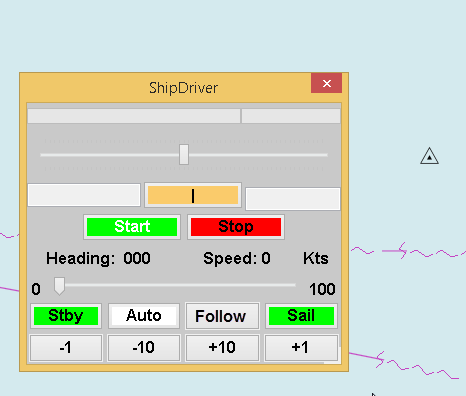
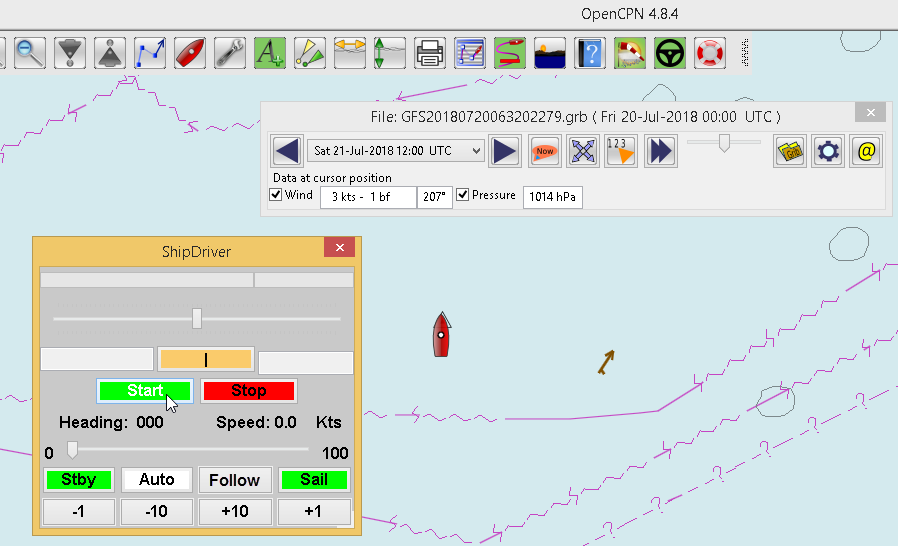
Use right-click to bring up the menu for selecting the vessel start position. I have chosen a position close to a waypoint.
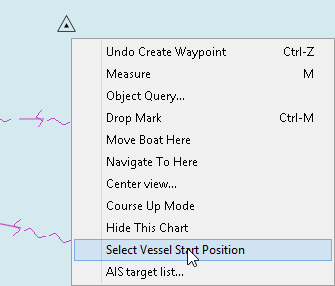
Initially nothing happens but when you press the 'Start' button on the control the ownship icon appears, coloured red.
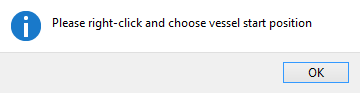
If you have not chosen a start position a warning notice will appear.
The basic controls for using the simulator are shown here:
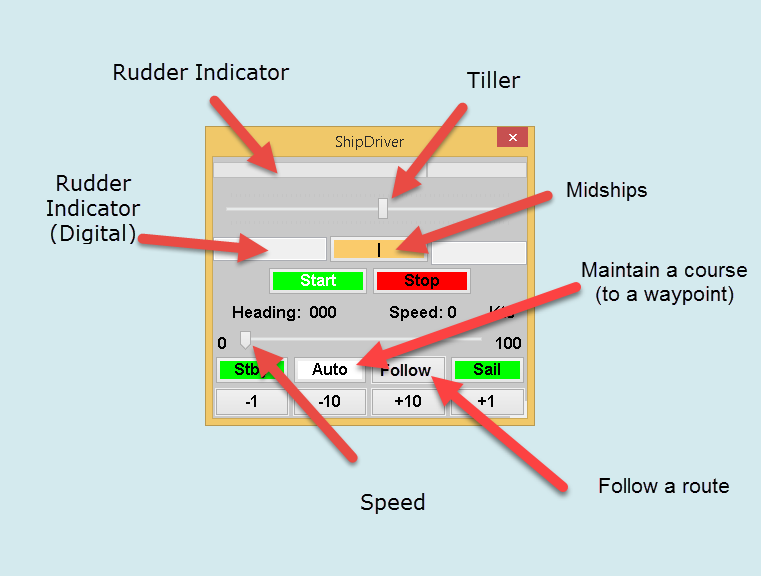
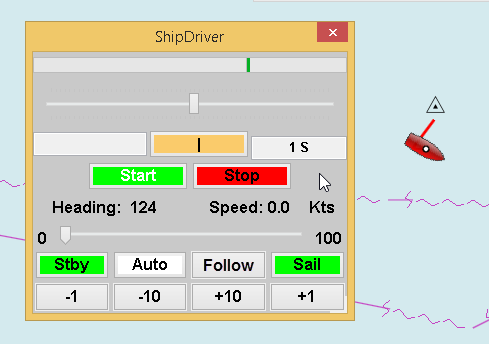
The best way of learning is to use the tiller and speed controls and watch the effect. When using the tiller an indicator at the top shows the rudder position. There is also a digital readout, either side of the 'Midships' button.
4. Options
Auto
The 'Auto' button directly controls the heading. 'Standby' stops the function. Using the tiller while the Auto function is active will override and stop 'Auto'.
'Auto' active:
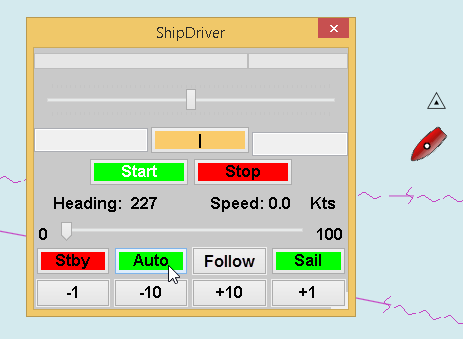
Using the -1, -10, +10, +1 buttons the heading can be adjusted by -1, -10, +10, +1 degrees.
Follow
Using the 'Follow' button the vessel will follow a route. The route to follow is selected from the list of available routes.
The vessel will follow the route until the end of the route is reached. The vessel will then stop. The speed of the vessel is controlled by the speed control. The vessel will follow the route at the set speed.
Sail
'Sail' uses the wind data from a Grib file to determine the speed of the boat. A polar from an 'Open 60' forms the basis for this. Press 'Sail'. By adjusting the heading the speed of the boat will change accordingly.
If the Grib plugin is not using a file that covers the present time/location a warning appears.
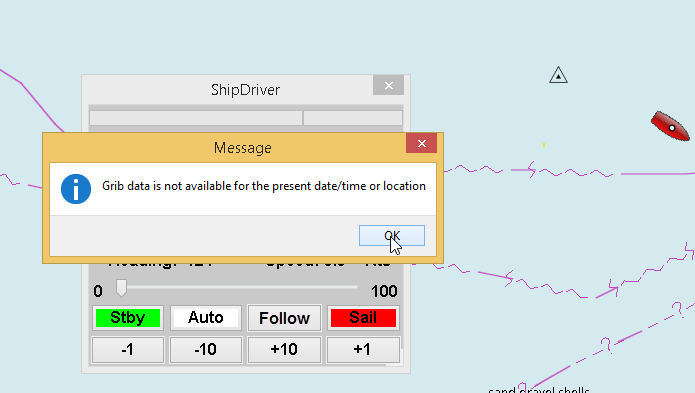
The Grib plugin can be used to select a Grib file that covers the present time/location. The Grib plugin will then use that file to determine the wind speed/direction.
The speed control is not active when the 'Sail' option is in use.
when 'Sail' is active the button changes colour from green to red. Press 'Sail' again to stop this mode.
In Preferences the 'Sail' option can be used to select another polar file. ShipDriver will use that polar file to determine the speed of the vessel when 'Sail' is active.
AIS
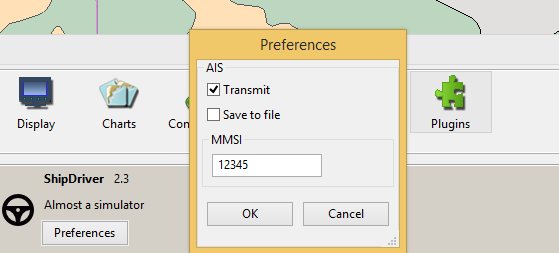
In Tools→Plugins the 'Preferences' button for ShipDriver is used to select the AIS options.
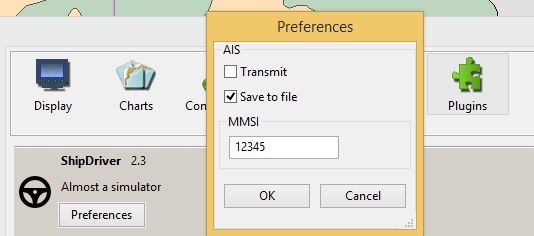
When recording AIS a text file is created that can be played back with the VDR plugin. This records AIS data from 'Own Ship'. This data is nearly the same as seen when meeting a vessel transmitting a Class B AIS signal in the real world.
AIS being recorded:
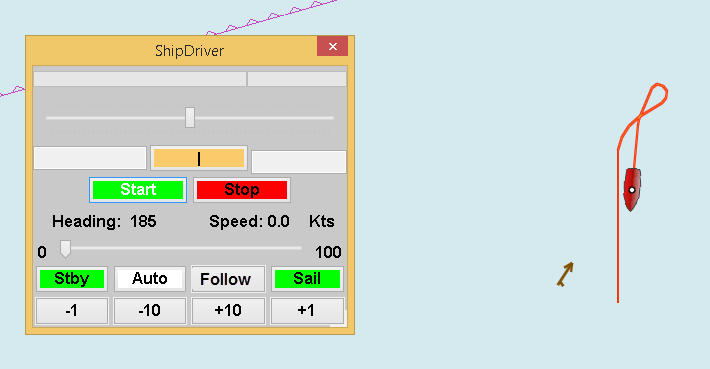
ShipDriver has been stopped and the AIS file is being played back using the VDR plugin:
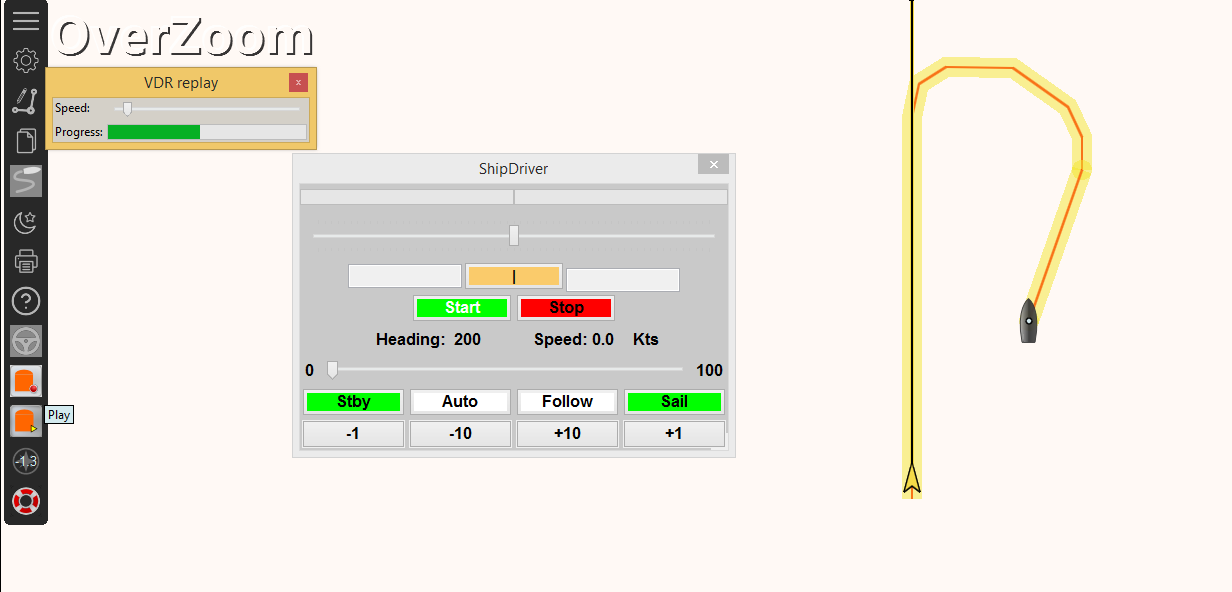
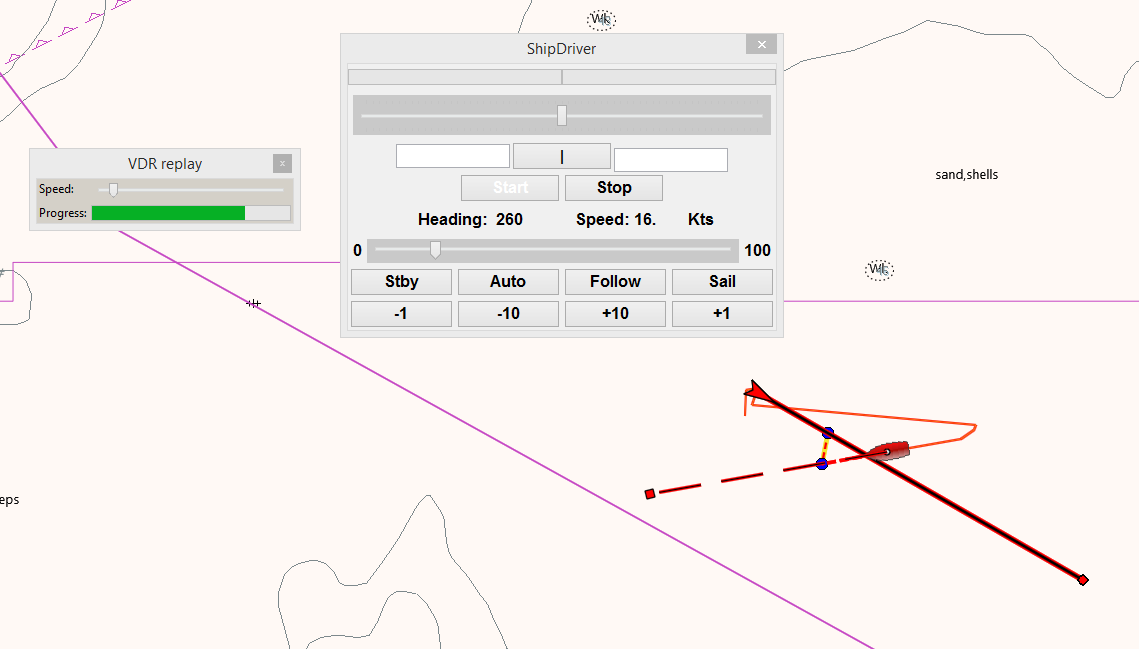
By moving the vessel start position, re-starting and running ShipDriver, at the same time as playing the AIS with 'VDR_pi' a collision regs scenario can be created.
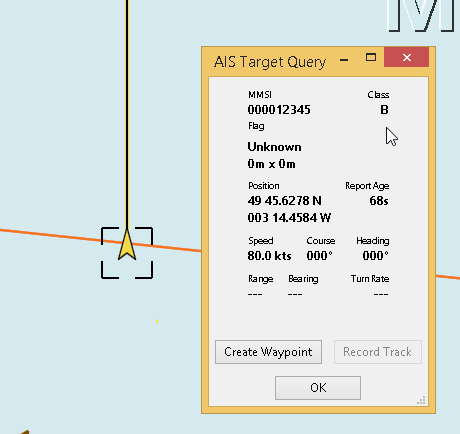
Obtain the AIS data for the 'other vessel' by using 'right-click' on the target.
AIS Transmission
Using Tools→Plugins and 'Preferences' for the plugin select the 'Transmit' option.
When ShipDriver is in use an AIS signal will be transmitted from 'Own Ship'.
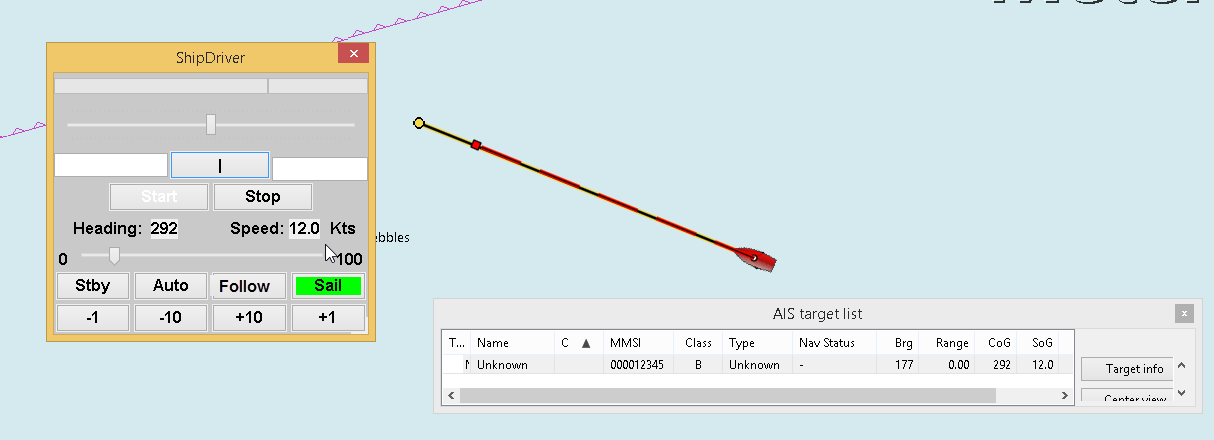
This has limited use when OpenCPN is used on a single computer. However, on a network it is possible to transmit the data to another computer running ShipDriver allowing two users to simulate collision avoidance situations.